A Must-Read for Cyclists! The Ultimate Practical Guide to Bicycle LCD Dashboards
The bicycle LCD dashboard is like the digital command center of your bike. Whether it's a standard cyclocomputer or an E-bike display, the operating logic is quite similar. This guide covers the core functions and general operations to help you get started quickly.
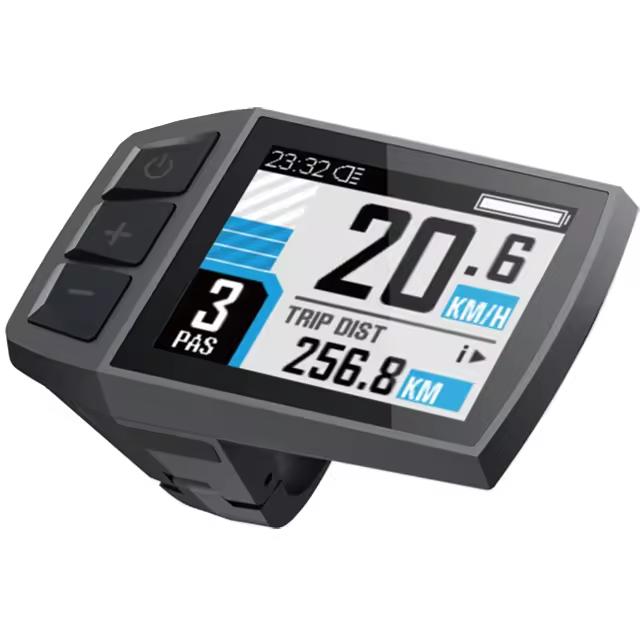
Understanding the Core Display Data
First, get familiar with the most common data icons on the screen—they form the "language" of the dashboard.
-
Speed – Typically shows current speed. You can also toggle to view Average Speed (AVG) and Maximum Speed (MAX).
-
Distance & Time:
Odometer (ODO) – Records the total cumulative distance traveled. Cannot be manually reset.
-
Battery Level – Crucial for E-bikes, usually shown as a bar graph or percentage. If the battery frame is flashing, it usually indicates severe undervoltage—charge immediately.
-
Pedal Assist Level (PAS) – Exclusive to E-bikes. Use the "+" and "–" buttons to adjust motor output power. Higher levels provide stronger assistance but drain the battery faster.
General Operating Logic
Buttons may have different names across brands (e.g., MODE, UP/DOWN, POWER), but the functional logic remains very similar.
1. Setup & Calibration (How to Make It More Accurate?)
For a new dashboard or after changing tires, you should enter the settings menu to perform basic calibration for accurate data. The most common way to enter is to press and hold the "+" and "–" buttons (or UP and DOWN) simultaneously for a few seconds.
-
Set Wheel Size – Enter the actual size of your wheel (in inches or millimeters). This is the basis for speed calculation.
-
Switch Units – Toggle between Metric (km/h) and Imperial (MPH).
-
Speed Limit – Set a maximum speed. Once exceeded, the controller will cut off motor power for safety (common on E-bikes).
2. Daily Operations & Tips
-
Switch Data Views – During a ride, briefly press the "POWER" or "MODE" button to cycle through TRIP distance, ODO total distance, riding time, and other data.
-
Control Lights – If supported, press and hold the "+" button (or a specific combination) for about 3 seconds to turn the headlight on or off.
-
6 km/h Walk Mode – A practical E-bike feature. Press and hold the "DOWN" button (or a specific key) to activate it. The bike will move forward slowly at a constant speed of about 6 km/h, which is helpful for pushing through crowded areas. Note: This function is for walk-along use only.
-
Reset Trip Distance (TRIP) – Usually found in the settings menu, or it may reset automatically after power-off depending on the model.
What to Do When an Error Occurs?
When the system detects a fault, the display will show an Error Code. Codes vary by brand, but here are some common examples:
| Error Code | Possible Meaning |
|---|---|
| E06 | Battery undervoltage – low battery |
| E10 | Communication failure between display and controller – check wiring |
| E21 | Current abnormality |
| E22 | Throttle abnormality |
| E30 | Communication error |
If an error code appears, first restart the system and check all cable connections. If the issue persists, record the code and consult a professional repair center.
Notes on Compatibility Across Different Dashboards
There are many dashboard models on the market, but most share similar operating logic. For example, common brands like Haytrix, KING-METER, and Lectric are very similar in how you enter the settings menu (usually long-pressing "+" and "–" together) and adjust PAS levels ("+" and "–" buttons).
The safest advice: For any new dashboard, always consult the included user manual first—it provides the most accurate and model-specific button descriptions and error code tables.